
How to submit photos for a funeral slideshow
Which files work, how to copy old prints, and how your pictures reach the person putting it together
Start for freePay only when you download, with iDEAL | Wero or card
Upload together
Family add their own photos
Create together
You select the most meaningful photos
Watch together
View the presentation with family
Someone has asked you for photos. Now what?
When you are asked to submit photos for a funeral slideshow, the request is usually short: do you have any pictures of Dad, of Grandma, of your old colleague? The practical questions come afterwards. Will an iPhone photo open on someone else's computer? What about the prints in the album on the shelf? Should you send ten pictures or two hundred? This page answers those questions, both for the person sending photos and for the person gathering them. In short: almost any file works as it is, the original is better than a forwarded copy, and a small selection is more useful than a full camera roll.
Easy to use
Create together with family
Professional result
Ready within an hour
Adding photos from your phone as a helper
The person making the slideshow invites you by email. The email contains a button that takes you to it. You sign in with your email address and a code that is sent to you, so there is no password to think up. It runs in the browser on a phone, tablet or laptop, with nothing to install.
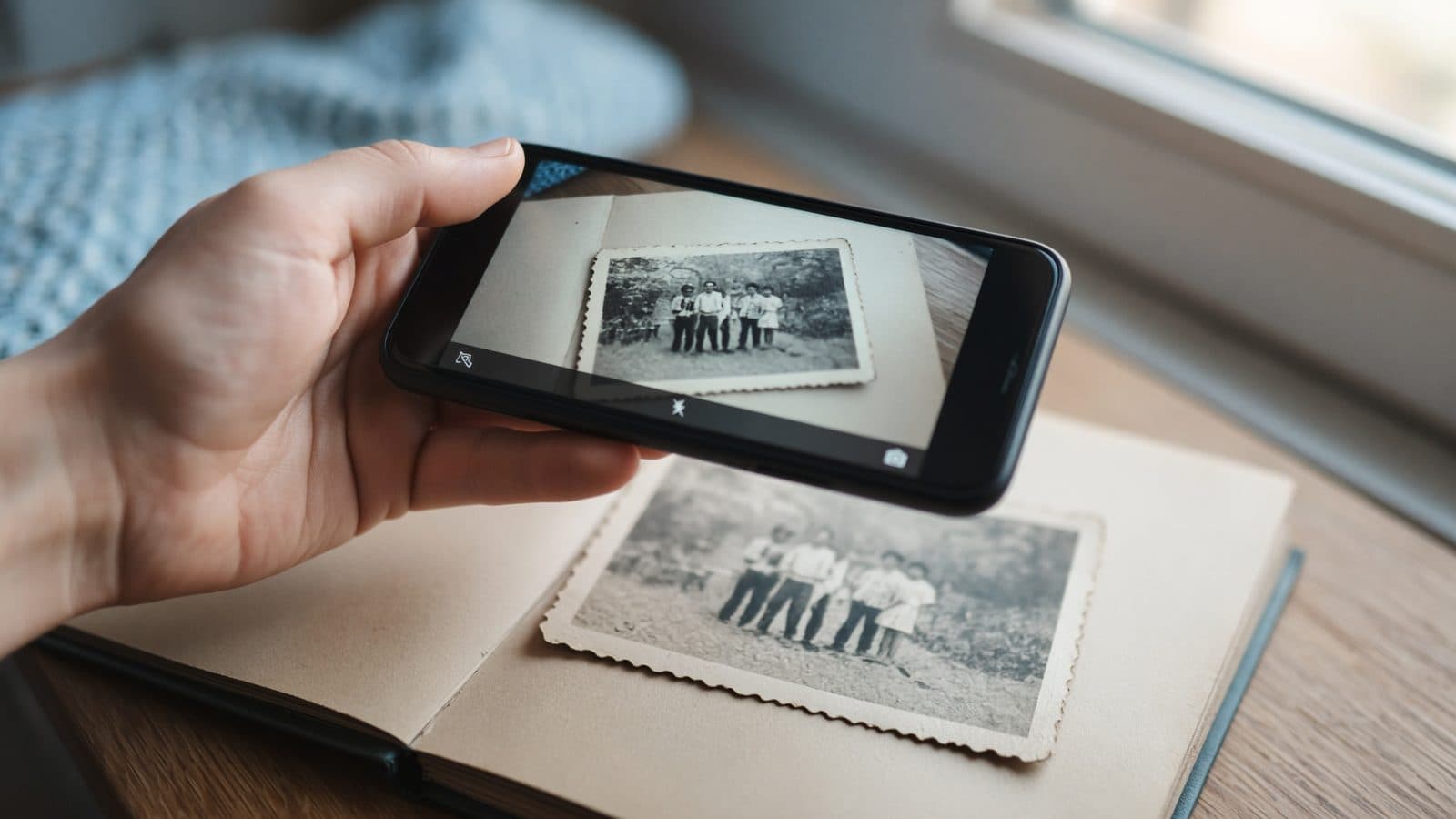
Then pick photos from your library, several at once if you like. On a phone there is also a button to take a picture on the spot. That suits an album well: turn the page, photograph the print, and it is in the collection straight away. Large files are reduced as they are added, to a size that is still more than enough for a screen or projector.
Do you have a short clip or a song that belongs to the person who died? Helpers can add phone videos (MP4, MOV) and music as well as photos. If you find more pictures later, sign in the same way and add them.
What to check about the photos themselves
Files from a phone or computer
HEIC from an iPhone, JPEG from an Android phone or a camera, PNG, a scan, even a PDF: add them as they are. There is nothing to convert. Each page of a PDF becomes a separate picture. Portrait and landscape photos are both fine; whoever builds the memorial slideshow decides per slide whether a photo is fitted or fills the screen.
Prints from the album
A flatbed scanner gives the cleanest copy; 150 DPI is enough for a screen, 300 DPI if the photo may also be printed. No scanner? Lay the print on a plain surface near a window, hold your phone directly above it, switch off the flash and tap the screen to focus. Take a framed photo out of its frame if you can, because glass reflects.
The original, not the WhatsApp copy
WhatsApp shrinks photos when it sends them. You will not notice on a phone, but you will on a large screen at the service. Ask for the original file from the photo library. If WhatsApp is the only route, have the photo sent as a document or in HD quality.
How many photos to send
Each photo is shown for six to eight seconds. A song of three and a half minutes therefore holds roughly 26 to 35 pictures. As a helper, ten to twenty photos that mean something to you are worth more than two hundred holiday snaps that someone else has to sort through.
Five checks before you send
- It is the original file, not a screenshot and not a forwarded copy
- The person being remembered is easy to recognise, even from the back of the room
- A photographed print was taken from directly above, without flash, shadows or fingers in the frame
- The photos cover different periods: childhood, work, family, recent years
- Everyone clearly visible in the picture would be comfortable with it being shown
What happens to the photos you send
Everything helpers add goes into one shared collection. Your pictures are not placed in the slideshow automatically. The person making it looks through the collection and decides what goes where: a few photos for the loop that plays as guests arrive, one portrait behind a speaker, a sequence set to music. The collection can be sorted by who added each photo.
If you are the one collecting, ask specific questions. "Do you have any photos from his years at the football club?" brings in more than "send whatever you have". Give a date by which you want everything, ideally two days before the funeral home or venue needs the file. And agree who goes through the old albums, since those prints usually sit in one person's house.
Need a JPEG for something else?
A printer preparing the order of service, a newspaper or the funeral home may ask for JPEG files. For those cases this site has two free tools: one turns HEIC into JPEG, the other turns each page of a PDF into a JPEG. You will find them under the free tools. You do not need them for the funeral photo slideshow itself, where files work exactly as you send them.
From loose photos to a slideshow set to music
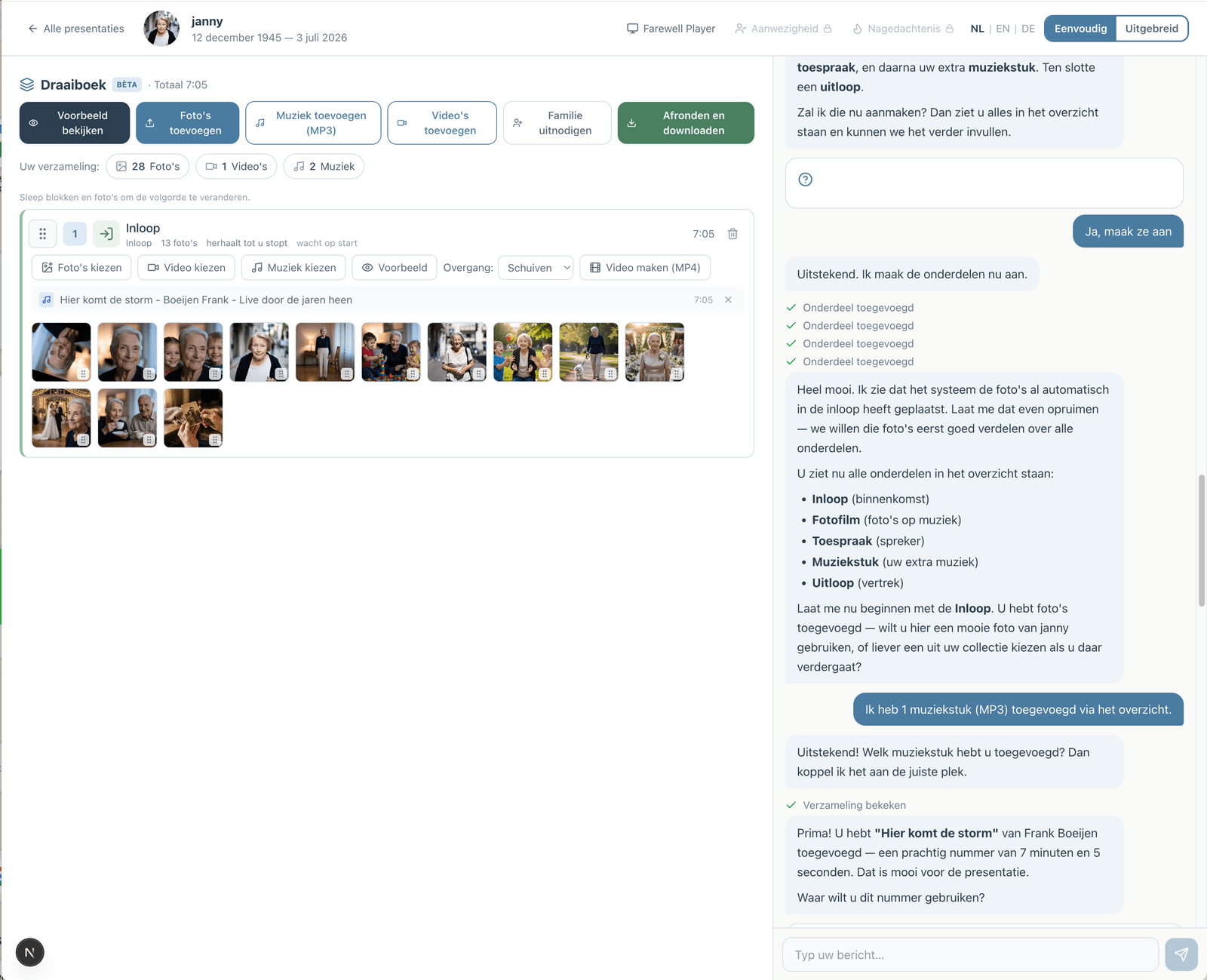
The person making the slideshow adds their own MP3 and puts the chosen photos in that part of the service. The photos spread themselves over the length of the song. If there are few photos for a long song, the sequence simply comes round again.
So as a helper you do not need to count. Send what is worth seeing; the pacing follows the music.
Important: Spotify and YouTube are only there to find and listen to music while the slideshow is being made. The download contains the uploaded MP3 and nothing else.
And then on to the venue
Once it is finished, the maker downloads it in whatever form the venue asks for: a PowerPoint file with the music inside, numbered JPEG photos for an in-house system, a file for the free Farewell Player, or an MP4 memorial video for each part of the service. As a helper you do not have to deal with any of that.
Why gather the photos here
When relatives submit photos for a funeral slideshow by email, WhatsApp and USB stick, one person ends up saving, renaming and converting everything. In a shared collection it all sits in one place, in its original quality, and the maker can see at a glance what has come in.
It does not matter what device anyone uses. The nephew with an iPhone, the aunt with a laptop full of scans and the neighbour with an Android phone all add their pictures the same way. That holds for a celebration of life slideshow as much as for a traditional service.
Collecting photos, building the slideshow and watching it with music are free. The maker pays once, only when downloading. Helpers pay nothing.
Free to collect, make and preview. A one-time … when you download.
Prefer to go step by step? The assistant can help
If you would rather not figure everything out yourself, you can work with an assistant in the simple view. You describe how the service will go; the assistant prepares the parts, the music and the photos. You make the choices, and you can switch to the advanced view at any time.
How the assistant worksHow does it work?
Create a free account
Upload photos and videos
Choose music and customize
Download or share the presentation