

Funeral slideshow: a screen-by-screen tour of making one
What you will see in The Last Farewell and what each button does, from the first outline to a preview with music and the finished download.
Start for freePay only when you download, with iDEAL | Wero or card
Upload together
Family add their own photos
Create together
You select the most meaningful photos
Watch together
View the presentation with family
The screen you start with
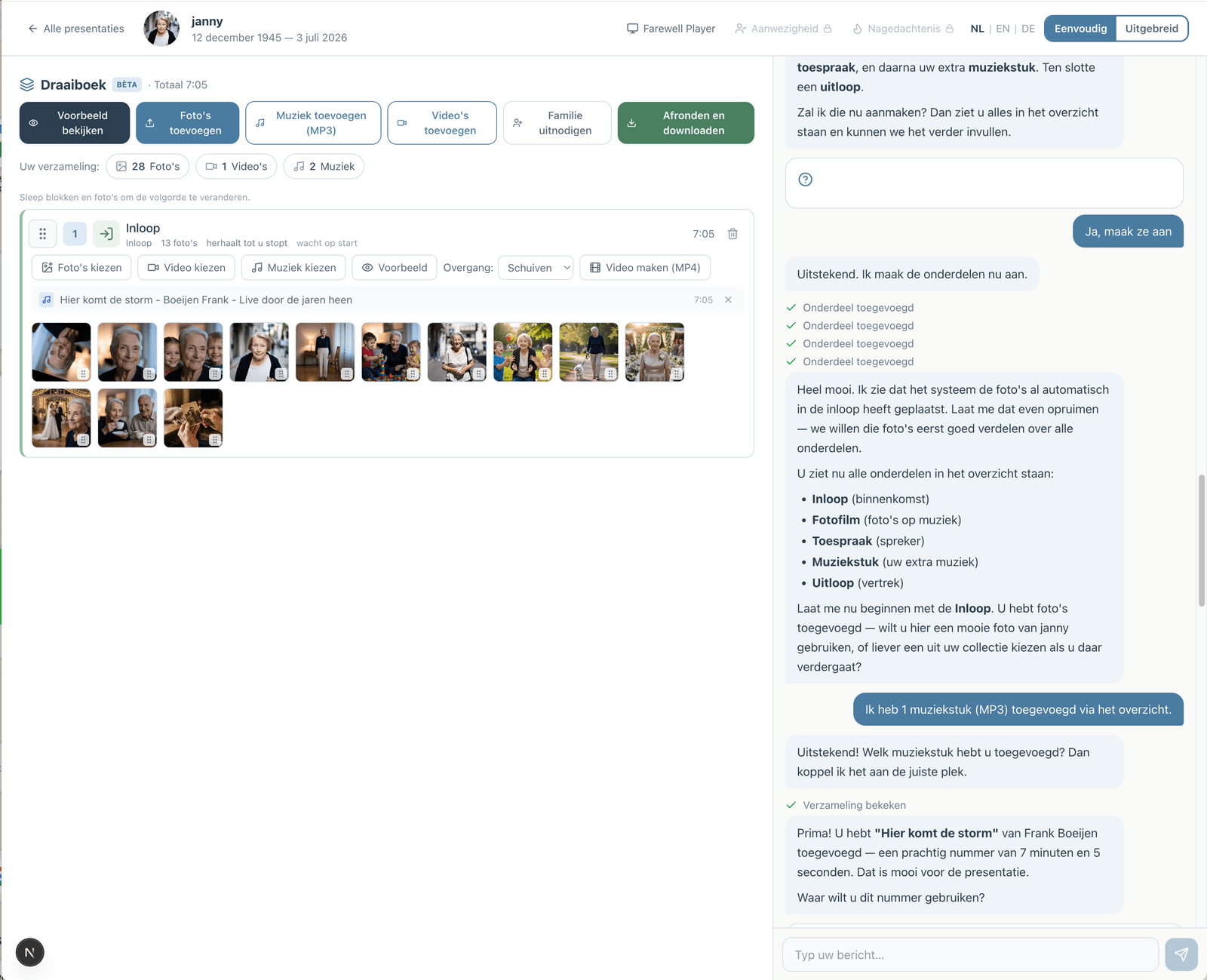
A funeral slideshow in The Last Farewell is built on one screen in your browser, on a phone, tablet or laptop, with nothing to install. This page walks through that screen so you know what is there before you begin. You create a presentation with your loved one's name and pick the Simple view. The presentation sits on the left and the conversation with the assistant on the right; on a phone they become two tabs, "Presentation" and "Conversation". The assistant starts by setting out a first outline of four parts: a walk-in loop, a speaker, a photo presentation and a closing loop. Nothing about it is fixed. Any part can be removed, another can be added and the order can change. You can ask the assistant for things in plain words, or leave it alone and use the buttons in the overview yourself. Either way you end up with the same memorial slideshow.
Easy to use
Create together with family
Professional result
Ready within an hour
Make a funeral slideshow: collect first, then choose per part
Above the parts is a card called "Your collection" with three buttons: "Add photos", "Add music" and "Add videos". Whatever you pick lands in the collection first, not yet in the slideshow. iPhone photos (HEIC), JPEG and PNG work as they are, and so do scans and PDFs, so there is no converting. Music goes in as your own MP3 file, phone videos as MP4 or MOV. Open the collection and you get three tabs (Photos, Videos, Music), sorting by newest, oldest, file name or person, and a "Trim" button to shorten a song. "Invite others" asks for an email address; press "Send invitation" and that person signs in with their email address and a code sent to them, then adds their own photos, videos and music to the same collection. Under "Who is helping" you see who has joined and decide whether someone may only add things or may also edit the presentation.
Each part has two buttons after the words "From your collection:". "Choose photos" opens a window with every photo in the collection. Click the ones you want and confirm with "Add", which shows the number you selected in brackets. Photos already used in another part are marked, so you never double up by accident. "Choose music" attaches an MP3 from the collection, and you can listen to it there first. A part can hold more than one song; they play one after the other. Under "More" you will find "Choose video" for a clip between the photos. The chosen photos appear as a row of thumbnails inside the part. Drag them to reorder; on a phone, press and hold a photo first.
Once a part has photos and music, the photos spread themselves across the length of the song. You do not set any timings. Next to the part's name you can read the outcome, for example "±7 sec per photo", which is how long each picture stays on screen. If that figure drops below 6 seconds the pace gets quick, and fewer photos, a longer song or a second piece of music will help. With only a few photos for a long song, each one stays for at most 8 seconds and the series comes round again; the note then reads something like "±8 sec per photo · series 2×". A video among the photos counts as fixed time, and the photos share what is left of the song.
The kinds of part and what each does in the slideshow
Entrance and exit loops
The window lists them as "Entrance / Arrival" and "End of service / Exit". Photos keep looping until you stop, with or without music, and the overview labels them "repeats until you stop". The duration you enter is only an estimate for the running order; the slideshow itself carries on for as long as people are arriving or leaving.
Speaker and own moment
A "Speaker" part shows one photo without music, and it stays up until whoever is operating moves on. "Add speech text" keeps the eulogy with the part as a Word or PDF file. An "Own moment" behaves the same way under a name you give it, such as a poem or a moment of silence. Without a photo it only appears in the running order.
Music piece
This is the funeral photo slideshow proper: photos change with the music and the part lasts as long as the song. When creating it you choose between "With music" and "Set manually" for the duration. The "Music piece (looping)" variant starts again after the last picture, photos and music together, until you stop it.
Video compilation
One or more videos played in sequence, each once at its own length. You switch the sound of each video on or off and can put background music underneath. It suits clips that deserve their own place in the service, a short memorial video for instance, instead of sitting between the photos.
What you can do with a part
- Add one: click "Add a part" (above and below the list), pick the kind and click "Create". The new part is placed at the end.
- Rename it: the pencil next to the name opens a text field, and "Save name" keeps the new name.
- Move it: take the handle to the left of the name and drag the whole part to a different place in the order of service.
- Remove it: the bin icon asks first, with "Yes, remove" or "No, keep it".
- Fine-tune it under "More": an "Opening text…" on the first slide, the display (Fill or Original), the transition (Fade, Wipe, Zoom or Direct) and the background (Blurred or Solid).
Editing a single slide with the pencil
Each photo in a part has a pencil at the top left and a cross at the top right. The pencil opens the editing screen for that one slide. It has sliders for "Rotate", "Scale", "Left/Right" and "Up/Down", plus a choice between "Cover", where the photo fills the screen, and "Original", where the whole photo stays visible. You see every change straight away in the picture. "Reset photo" puts things back as they were, and "Done" closes the screen with your changes saved.
The same screen has "Add text" for a line over the photo, a name or a year perhaps, with a choice of font, colour, size and shadow. You can also place up to four more photos on the slide as smaller insets and drag them where you want them. "Blur background" switches the soft backdrop behind an upright photo on or off, and "Photo frame" adds a frame. The cross on a photo takes it out of the part, never out of the collection. Back in the overview you can also mark a photo so the slideshow waits there for start.
Downloading, in four forms
The green "Pay and download" button opens the download screen; after payment it simply reads "Download" and you can return to it as often as you need. There are four forms. PowerPoint, with the music inside the file, slides that advance on their own and the waiting points built in. Numbered photos (001.jpg, 002.jpg and so on) with the music as separate files, for a venue with its own playback system. A file for the Farewell Player, a free program for Windows and Mac that runs without internet. And video (MP4), one file per part with photos, videos and music together. Alongside these come a one-page operating guide and the order of service as a PDF.
Watching your funeral slideshow before the day, with music
At the top of the overview is "View preview". It plays the whole slideshow as it will run on the day: the entrance loops, a speaker's photo stays until you press the space bar, and a part that waits for start only begins after the "Start" button. Inside the preview you can jump straight to another part and turn the sound up, down or off. The word "Preview" lies across the picture as a light watermark. Watching costs nothing and you can do it as often as you like.
To see just one part, click "More" on that part and then "Preview". After swapping a song or dragging a few photos you hear at once whether it works, without sitting through the entrance loop. If something is off, close the preview, change it and play it again; the new preview shows the change immediately.
A slideshow for a burial and one for a cremation are made in exactly the same way, and the same goes for a celebration of life slideshow: same parts, same buttons, same download. Only the order differs, and you set that by dragging.
Making, editing and previewing are free. A one-off … when you download, with no subscription.
Prefer to go step by step? The assistant can help
If you would rather not figure everything out yourself, you can work with an assistant in the simple view. You describe how the service will go; the assistant prepares the parts, the music and the photos. You make the choices, and you can switch to the advanced view at any time.
How the assistant worksHow does it work?
Create a free account
Upload photos and videos
Choose music and customize
Download or share the presentation