
A funeral slideshow without PowerPoint, from making it to playing it
Build it in a browser. Play it with the free Farewell Player, as a video on a TV, or from numbered photos.
Start for freePay only when you download, with iDEAL | Wero or card
Upload together
Family add their own photos
Create together
You select the most meaningful photos
Watch together
View the presentation with family
Two questions: what do I build it in, and what plays it?
A funeral slideshow without PowerPoint is entirely possible, and for many families it is the simpler route. There are really two things to sort out. First, what you put the photos and music together in when your laptop, Chromebook or iPad has no PowerPoint on it. Second, what the slideshow will run on at the service, when the venue's computer has no Office or the room only has a television. This page covers both, and helps you match a playback format to the room you will be in.
Easy to use
Create together with family
Professional result
Ready within an hour
Building it: a browser is all you need
Everything happens in a web browser such as Chrome, Safari, Edge or Firefox, on a phone, a tablet or a laptop. Nothing is installed and no Office licence is involved. That makes a Chromebook or an iPad, where PowerPoint is often missing or cut down, just as good a place to work as a Windows laptop.
Photos go in as they are: HEIC from an iPhone, JPEG, PNG, and scans or PDFs too, with no converting first. You lay the memorial slideshow out in parts that follow the order of service, for example a walk-in loop, a speaker, a funeral photo slideshow set to music, and a closing loop. For a part with music you add your own MP3 and the photos spread themselves across the length of the song. A photo stays on screen for 8 seconds at most; plan on at least 6 seconds per photo.
The preview runs in that same browser, with the music and the pauses in place, as many times as you like. You see the finished result without opening a presentation program at all. Only once you are happy do you decide which format to download.
Which format suits which room
The venue only has a TV with a USB port
Choose Video (MP4). You get one video file per part, with photos, clips and music combined. Copy the files to a USB stick and start each file name with a number so the order is obvious on the TV menu. Whoever is operating starts each file with the remote.
The venue has a laptop but no Office
Choose the Farewell Player. It is a free program for Windows 10 and 11 and for macOS 10.14 or newer. It is installed once, and after that a double-click on the .farewell file opens the slideshow. No internet is needed during the service.
You want to show it at home
A memorial video plays on your phone, tablet, laptop or TV and is easy to pass on to relatives. If you have a Windows or Mac computer at home, you can install the Player there as well and watch the slideshow the way it ran at the service.
The venue runs its own system
Some crematoria and churches load pictures into their own playback system. Numbered photos are meant for that: 001.jpg, 002.jpg and so on, in order. You hand over the music separately as an MP3.
Before the service: one run-through
Whichever format you pick, play it once on the screen and sound system that will be used on the day. For the Player, have the program installed well ahead of time and keep a copy of the .farewell file on a USB stick. For a video, check that the TV recognises the file and whether the sound comes from the TV or the room's speakers. The download also includes a one-page operating sheet as a PDF, listing what the operator does for each part.
Gathering photos as a family, no software on anyone's side
You invite relatives and friends by email as helpers. They get in with their email address and a code, and add photos, videos and music to one shared collection from their own phone or computer. Nobody needs a particular program for that. You then decide what goes into which part of the celebration of life slideshow.
Pauses and music: what carries over into each format
In the Farewell Player everything behaves as you set it up. A part marked to wait only begins when the operator presses the space bar. During a speaker the photo stays put until someone moves on. A walk-in loop repeats until the service starts. The music is inside the file and starts with the right part. Control is by keyboard: space bar to start and pause, left and right arrows for the previous and next slide, up and down arrows for the previous and next part.
A video cannot wait. The file runs from start to finish with the music fixed to it. The pause therefore sits between files: because each part is its own video, the operator starts the next one when the moment comes. With numbered photos the operator clicks through every picture by hand and plays the music separately, so the pace is entirely in the venue's hands.
Important: Every download contains only your own MP3. Spotify and YouTube are there for finding and listening to music while you build; those tracks do not end up in the Player, the video or any other file.
The four download formats side by side
For a funeral slideshow without PowerPoint you can pick from three of the four. Ask the venue what equipment is in the room, then choose. If you are unsure, take two formats along on the same USB stick.
PowerPoint (.pptx)
Only needed when the venue specifically asks for it. Music and pauses are in the file, and you never have to open or edit it yourself.
Numbered photos (JPEG)
Each slide as a separate picture, numbered in order. For venues with their own playback system. Music is supplied separately.
Farewell Player (.farewell)
One file holding photos, clips, music and pauses. Plays on a Windows or Mac computer with no internet and no PowerPoint. The Player does not run on a phone, tablet or Chromebook.
Video (MP4)
One video file per part, picture and music together. Plays on almost any device and on most TVs with a USB port. No pauses inside a file.
In short
- Build it in a browser on a phone, tablet, laptop, Chromebook or iPad
- No program and no Office licence required
- Farewell Player: free, for Windows 10/11 and macOS 10.14 or newer
- Video (MP4) per part for TV, phone and tablet
- Numbered photos for a venue's own system
- Pauses are kept in the Player
- Free to make, pay only when you download
Why a funeral slideshow without PowerPoint is often the calmer choice
A presentation built at home in one program and opened at the venue in a different version can look different: the music fails to start, or the timing drifts. The Player and a video avoid that. The file holds everything and plays the way you saw it in the preview.
It is easier for the operator too. Five keys cover the Player, and a wireless presenter remote behaves like the arrow keys. A video needs nothing more than the play button.
And nothing is locked in. If the venue later asks for a different file after all, you download the slideshow again in another format without starting over.
Free to make and preview. A one-time … when you download.
Prefer to go step by step? The assistant can help
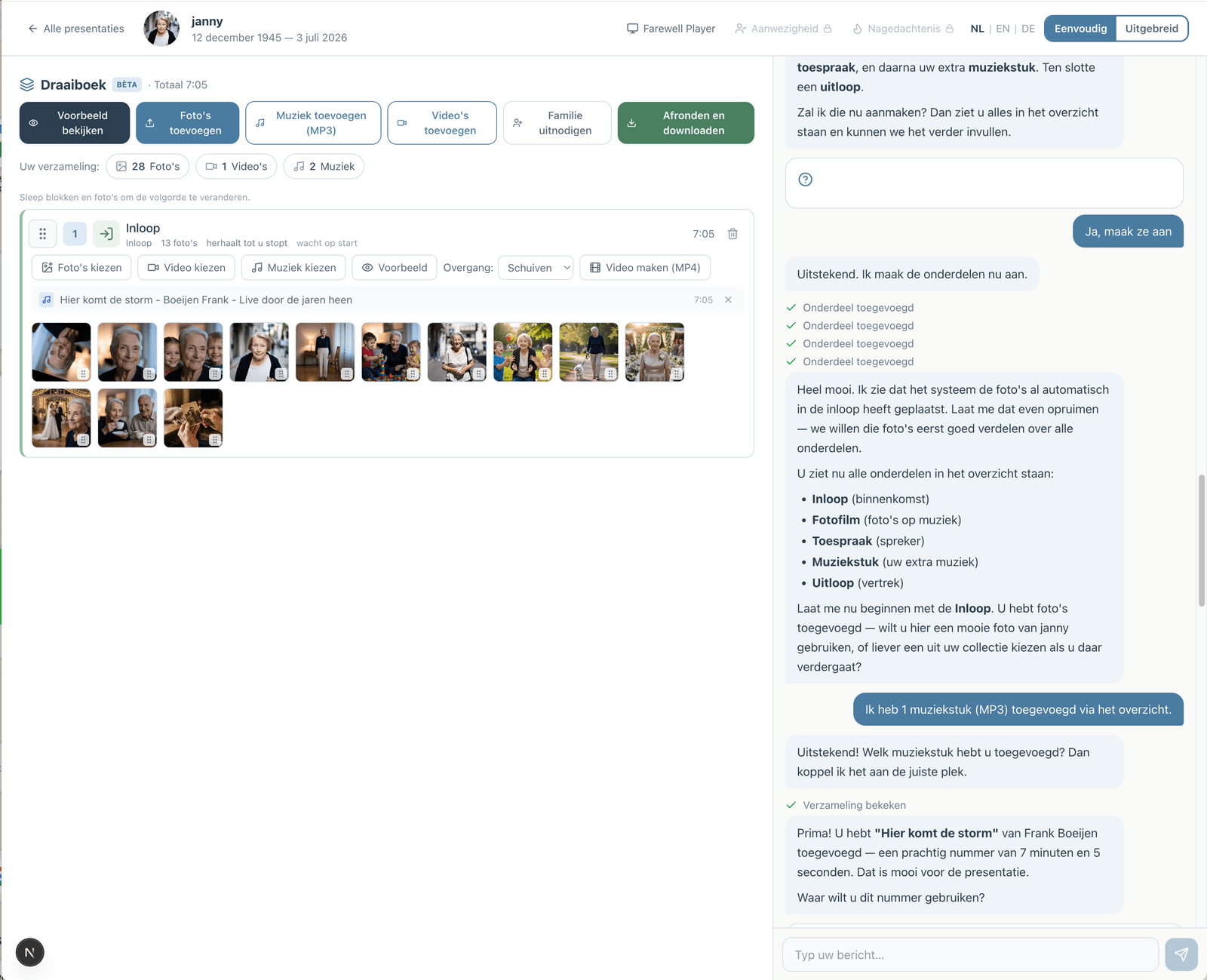
If you would rather not figure everything out yourself, you can work with an assistant in the simple view. You describe how the service will go; the assistant prepares the parts, the music and the photos. You make the choices, and you can switch to the advanced view at any time.
How the assistant worksHow does it work?
Create a free account
Upload photos and videos
Choose music and customize
Download or share the presentation