
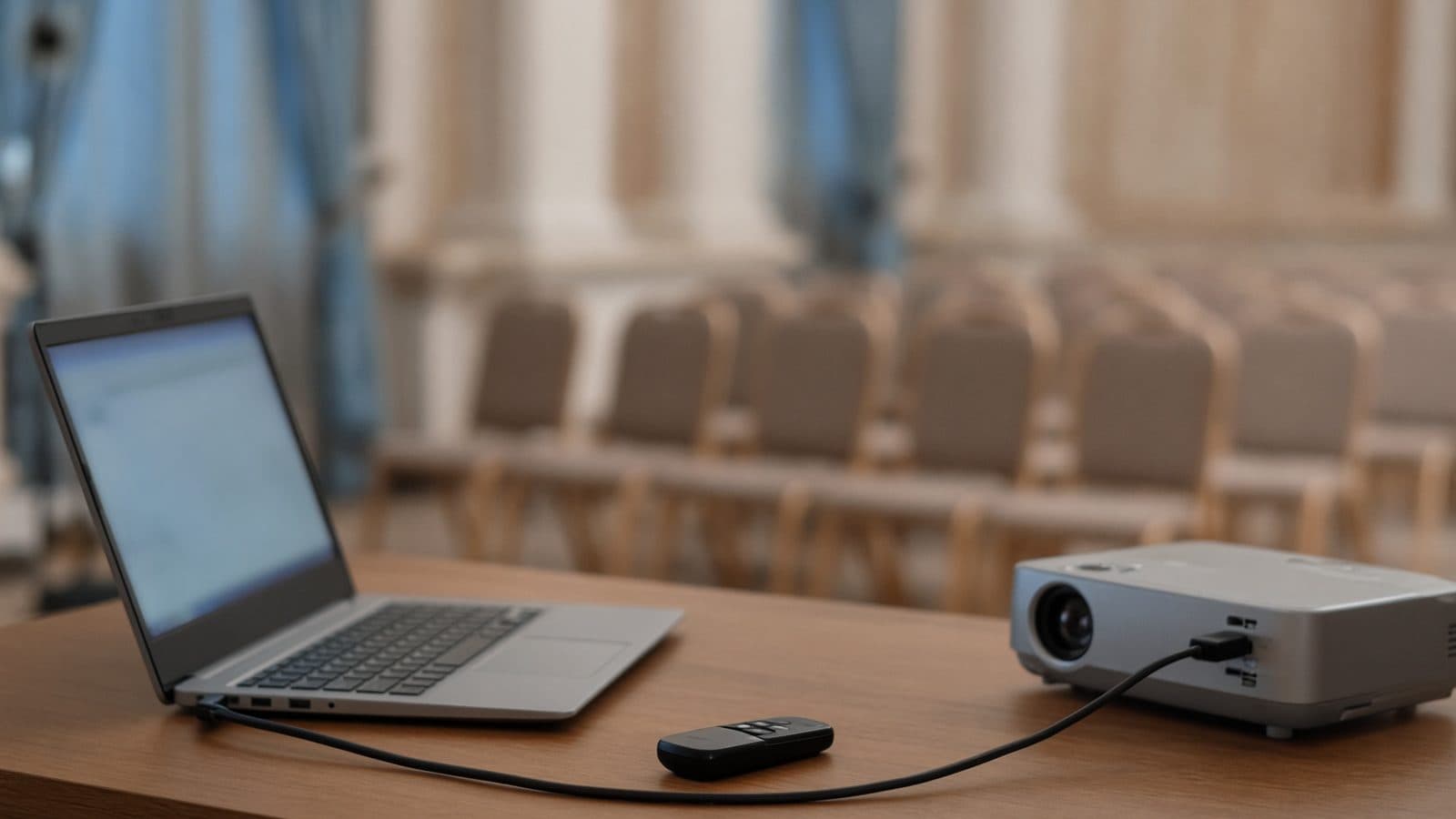
A funeral PowerPoint that follows the order of service
Music inside the file, slides timed to each song, and a note under every slide for whoever runs the laptop
Start for freePay only when you download, with iDEAL | Wero or card
Upload together
Family add their own photos
Create together
You select the most meaningful photos
Watch together
View the presentation with family
Know what you are handing to the venue
A funeral PowerPoint has one job on the day: open on somebody else's computer and play the right photos to the right song while a person who has never seen it presses the keys. So this page is about the file itself, not about choosing photos. It describes what is inside the .pptx you download from The Last Farewell: which slides run on their own, where the slideshow waits, what the operator reads under each slide, and which backup files come with it.
Easy to use
Create together with family
Professional result
Ready within an hour
What happens when you open the file
The download is a zip folder containing presentatie.pptx. Open it in PowerPoint 2010 or later, on Windows or Mac, and start the slide show from the beginning. There is nothing to link or set up. The music is embedded: in each part of the service the track starts by itself on the first slide and carries on across every slide of that part. If you shortened a song, the shortened version is what plays.
Slides advance automatically, timed to the length of the song. For example, a track of 3 minutes 30 seconds with 30 photos gives each photo 7 seconds. No photo stays up longer than 8 seconds; with too few photos for a long song, the set comes round again instead of one picture sitting on screen. The format is widescreen (16:9), and each slide is saved exactly as you saw it in the preview, with your crop, caption and transition.
Video clips are embedded too and play for their own length before the slideshow moves on. A walk-in or closing loop repeats in PowerPoint for as long as you set, then moves to the next part. If the service should only begin on a signal, set the following part to wait for start.
Four things the operator finds in the file
Sections in the slide list
Each part of the service is a numbered section in PowerPoint's slide panel, for instance 1. Walk-in, 2. Welcome, 3. Photo tribute. The names match the operating instructions. If the service drifts from the plan, the operator can jump straight to the right part.
The wait slide
A part that waits for start opens with an extra slide showing the same picture, with no music. The slideshow holds there. One click from the operator and the song and the slides start together, so a track never begins while someone is still speaking.
Clicking for a speaker
During a eulogy or reading nothing advances by itself and no music plays. One photo stays up for as long as the speaker needs. If you placed several photos with a speaker, the operator clicks from one to the next at the pace of the words.
Notes under every slide
The notes field of each slide lists the part, what happens, what the operator should do, how long it lasts and the position, such as slide 4 of 30. In Presenter View the operator reads this while the room sees only the photo.
What comes in the folder besides the .pptx
- presentatie.pptx, with music and video inside it
- Your music again as separate numbered MP3 files (01, 02, ...), as a backup
- Each video clip again as a separate numbered MP4 file, as a backup
- A short guide in case the music does not start by itself in an older PowerPoint
- Downloaded separately: the operating instructions (PDF, one page) and the order of service (PDF)
Compared with building the slideshow in PowerPoint yourself
People who put together a PowerPoint for a funeral by hand tend to hit the same four snags. Timing: with 60 photos you set 60 durations, and adding one more throws the rest out. Music: an inserted song stops at the next slide unless you know where the play-across-slides setting lives. Photos: iPhones save pictures as HEIC, which older versions of PowerPoint on Windows often will not open. And files: versions travel back and forth by email until nobody is sure which is the latest.
Here the timings are calculated for you and written into the file. Add a photo, download again, and everything lines up once more. HEIC, JPEG, PNG, scans and PDFs go in as they are, with no converting. And there is one shared collection that everyone adds to, rather than attachments spread over ten emails.
Editing the file in PowerPoint afterwards
It is an ordinary PowerPoint file, so you or the funeral director can open and change it: delete a slide, insert one with a line of text or a logo, reorder, or alter a duration. Two things are worth knowing. Each slide is a single image, so you cannot re-crop a photo or correct a caption on it inside PowerPoint. And the music is attached to the first slide of each part: delete or move that particular slide and the song for that part goes with it. If you change the number of photos, PowerPoint does not recalculate the timings and the part will no longer end with the music. In those cases it is safer to make the change in The Last Farewell and download again, which you can also do later on.
Gather first, export last
The PowerPoint file is the final step. Before that, you invite family and friends by email as helpers; they get access with their email address and a code, and add photos, video clips and music to one shared collection. You decide what goes into which part of the funeral slideshow.
All of this runs in the browser on a phone, tablet or laptop, with nothing to install. You do not need PowerPoint yourself to make the memorial slideshow; only the computer at the service does.
Which music ends up in the file
For each part you add your own MP3. The photos spread themselves across the length of that song, and that same spread becomes the per-slide timing in the PowerPoint.
Important: Spotify and YouTube are there while you are making the slideshow, to find a song and listen to it. That music is not included in the file. When you download, you are warned if a part still has no MP3 of its own.
If the venue does not have PowerPoint
We test the file with PowerPoint itself. Other programs that open .pptx, such as Keynote, may handle the music and timings differently. If the funeral home, church or crematorium has no PowerPoint, choose one of the other download formats; the slideshow itself stays the same.
Numbered photos
Every slide as a JPEG (001.jpg, 002.jpg, ...), for venues with their own display system. The operator clicks through each photo and plays the music separately.
Farewell Player
A free player for Windows 10 and 11 and macOS 10.14 or later. It opens the .farewell file and works offline and without PowerPoint, using the space bar and arrow keys.
Video (MP4)
One memorial video per part, with photos, clips and music in a single file. Plays on almost any device, but does not wait for a click.
Test it on the venue's computer first
- Ask which version of PowerPoint the venue uses and send the file a few days ahead
- You can download the free watermarked version first for testing; the music is already in it
- Run the slide show from slide 1: does the music start by itself, at a sensible volume?
- Go through every wait slide and every speaker with the operating instructions in hand
- Check that the widescreen picture fills the screen and that video clips play with sound
- Have notifications, the screen saver and automatic updates switched off on the laptop
- Bring the whole folder on a USB stick, not just the .pptx file
Why make your funeral PowerPoint with The Last Farewell
Because the person at the laptop is usually seeing your slideshow for the first time. A funeral PowerPoint that shows where it waits, where to click and what runs by itself asks no prior knowledge of them. The operating instructions put the same information on a single page.
Making, viewing and changing the slideshow is free. The preview plays it as it will run at the service, with music and wait points and a light watermark over it, as often as you like. You pay once, when you download the version without the watermark. There is no subscription and no payment details to enter beforehand. You can pay with iDEAL | Wero, Bancontact or card.
If you would rather not set it all up alone, an assistant in the simple view can prepare the parts of the service with you. The file you download afterwards is the same.
Free to make and preview. A one-off … when you download.
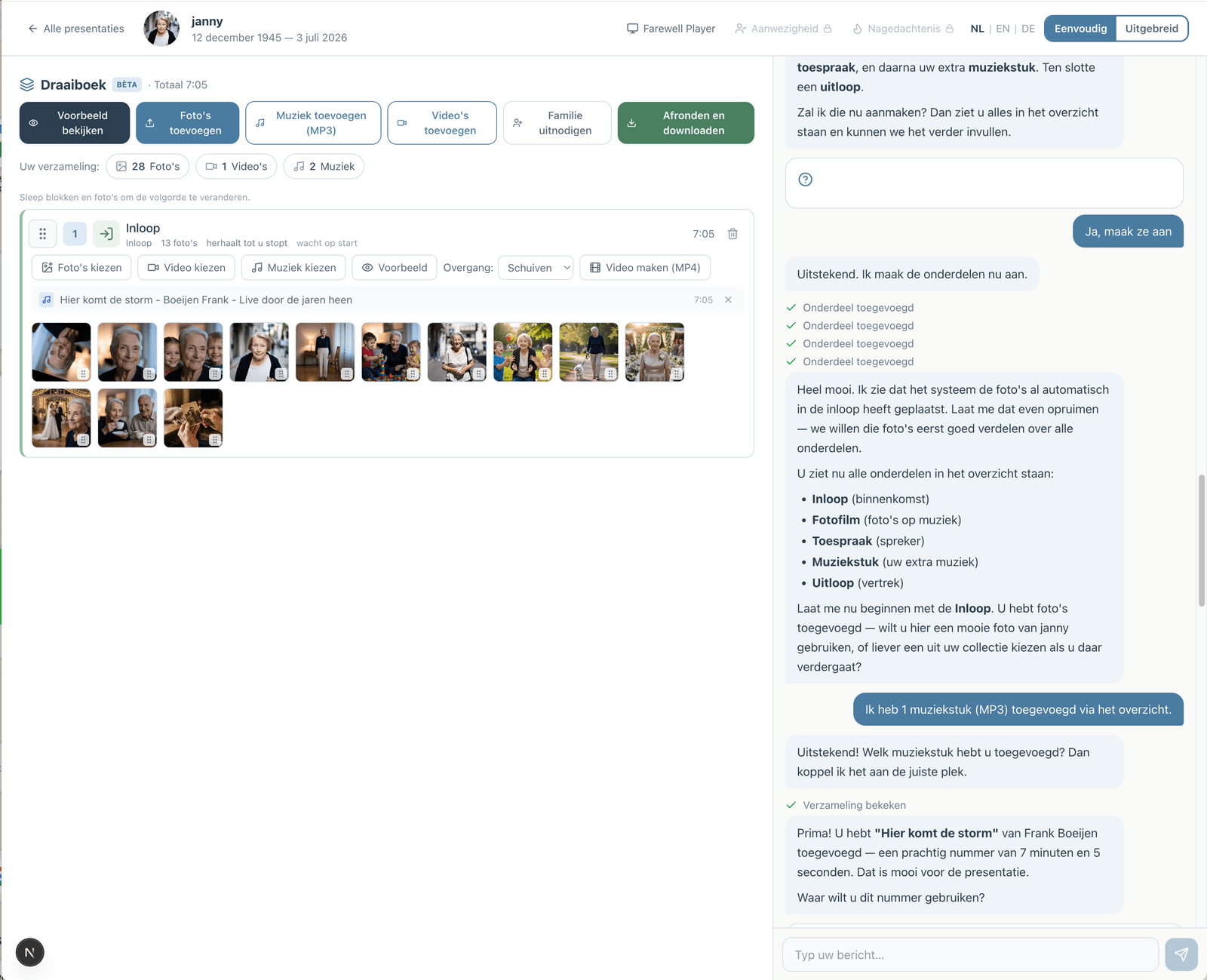
Prefer to go step by step? The assistant can help
If you would rather not figure everything out yourself, you can work with an assistant in the simple view. You describe how the service will go; the assistant prepares the parts, the music and the photos. You make the choices, and you can switch to the advanced view at any time.
How the assistant worksHow does it work?
Create a free account
Upload photos and videos
Choose music and customize
Download or share the presentation