
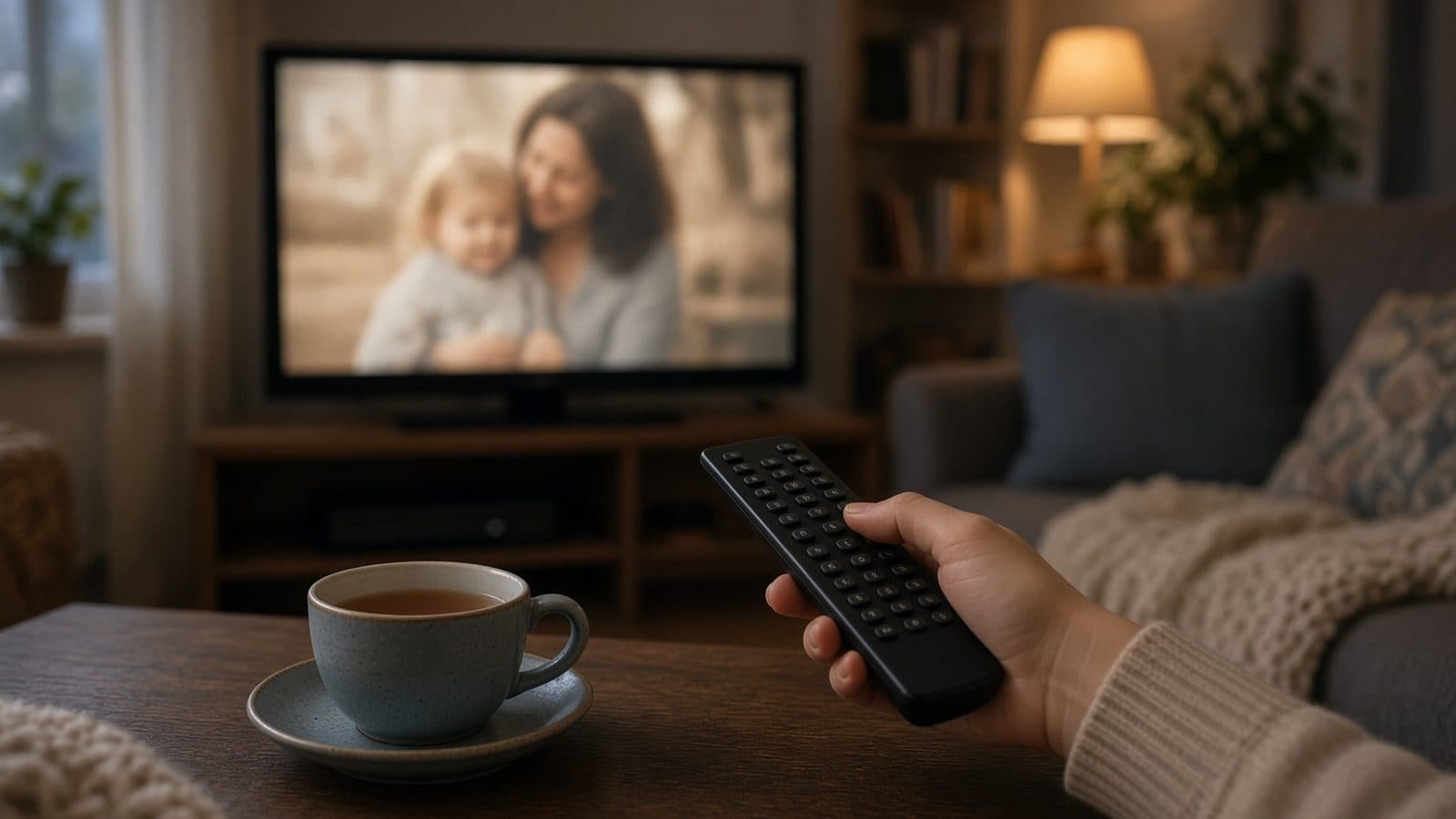
A memorial video for each part of the funeral service
Not one long film, but a video for each part of the service. Each one simply plays: on the venue's system, on a TV at home or for family far away.
Start for freePay only when you download, with iDEAL | Wero or card
Upload together
Family add their own photos
Create together
You select the most meaningful photos
Watch together
View the presentation with family
A video per part, not a slideshow someone has to operate
A memorial video here is not one film of the whole service but a video file for each part: one for the walk-in, one for the photo tribute set to music, one for the closing. You press play, and the photos, the moving footage and the song of that part run by themselves. Between the parts there is room for a speaker or a moment of silence. A funeral slideshow in PowerPoint is different. Someone opens it, starts it on cue and keeps an eye on it. With The Last Farewell you choose Video (MP4) when you download, and each part of the service becomes its own film in Full HD (1920 by 1080). An MP4 plays on almost anything with a screen, from a television with a USB port to the phone in your pocket.
Easy to use
Create together with family
Professional result
Ready within an hour
How a part of the service becomes a video
Start with a part set to music. Add your own MP3 and place the photos; they spread themselves across the length of the song. Each photo is on screen for 6 to 8 seconds, so a four-minute song (240 seconds) carries 30 to 40 photos. If you have fewer, the sequence comes round again by itself, so the picture never runs out before the music does.
Clips from a phone (MP4 or MOV) can join in two ways. The first is between the photos. The song keeps playing and the clip's own sound stays off unless you switch it on. A clip counts as fixed time: put a 30-second clip into a four-minute song and the photos share the remaining 210 seconds, which is room for 27 to 35 of them. If a clip runs long, trim it to the moment you want.
The second way is a video compilation: a part made of one or more clips played back to back. For every clip you decide whether its sound is on or off. On for a wedding speech, perhaps, and off for holiday footage. You can lay background music underneath and set its volume so a voice stays clear. When you download, each part is rendered as one MP4 with picture and sound together.
When a video file is the better choice
On the TV at home
At a wake, a reception or a celebration of life in someone's living room there is rarely a computer with PowerPoint. Copy the MP4 to a USB stick, or play it from a phone or tablet connected to the television.
On a tablet beside the guest book
A tablet on a stand at the visitation is all it takes. Turn on repeat in the video player and the film starts again by itself while people come and go.
For relatives overseas
Family who cannot travel see the same pictures set to the same song. They need no PowerPoint and no special program; the file opens on a phone, a tablet or a computer.
As a keepsake afterwards
A video file will still play on whatever device you own years from now. Keep it with your own photos and pass it on to children and grandchildren.
Good to know before you make the film
- One MP4 for each part of the service
- The film lasts as long as the song you choose, and a song can be shortened
- Photos stay on screen 6 to 8 seconds; clips keep their own length
- Sound on or off for every clip separately
- Only your own MP3 goes into the film, never music from Spotify or YouTube
What if the venue asks for something else?
Video is one of four download formats, and you are not limited to one. If the funeral home prefers a presentation that an operator starts part by part, download the same content as PowerPoint, with the music inside the file and the pauses built in. For venues with their own playback system there are numbered photos (001.jpg, 002.jpg) with the music as a separate file. The Farewell Player is a free program for Windows and Mac that runs without internet and without PowerPoint. Many venues prefer exactly this: they load the video for each part into their own playback system, the operator starts the matching file for each part, and picture and music always stay together. Ask the venue what they would like to receive. Afterwards you keep the memorial video for home and for those who could not be there.
Footage from the whole family in one place
The best clips are often on somebody else's phone. Invite family and friends by email as helpers. They get in with their email address and a code, and add their photos, videos and music to the shared collection.
HEIC photos from an iPhone, JPEG and PNG all work straight away, as do scans of old prints. Nothing needs converting. Everything runs in the browser on a phone, tablet or laptop, with nothing to install.
It all lands in one collection. You decide which pictures go into which part, and so into which film.
The song sets the length
Pick the song first and the photos second. A three-minute track wants roughly 23 to 30 photos; a five-minute track, 38 to 50.
In the extended view you can look up and listen to music through Spotify and YouTube while you build the film, to hear whether a song suits the pictures before you add the MP3.
Important: The download contains only music you added yourself as an MP3. Music from Spotify or YouTube never ends up in the video.
Why make your memorial video here?
There is no editing software to learn. No timeline, no cutting clips, no nudging a soundtrack until it lines up. Put the photos and clips in order, choose the song, and the timing works itself out.
You see what you are getting first. The preview plays everything with music, as often as you like, with a light watermark over it. The film itself is rendered when you download; transitions between pictures may differ slightly from the preview.
Making, viewing and changing it is free. You pay once, at download, with no subscription. After that you can download again, in another format too. If you would like help with the structure, the assistant in the simple view can set up the parts for you; everything can also be done without it.
Free to make and preview. A one-time … when you download, covering the video and the other formats.
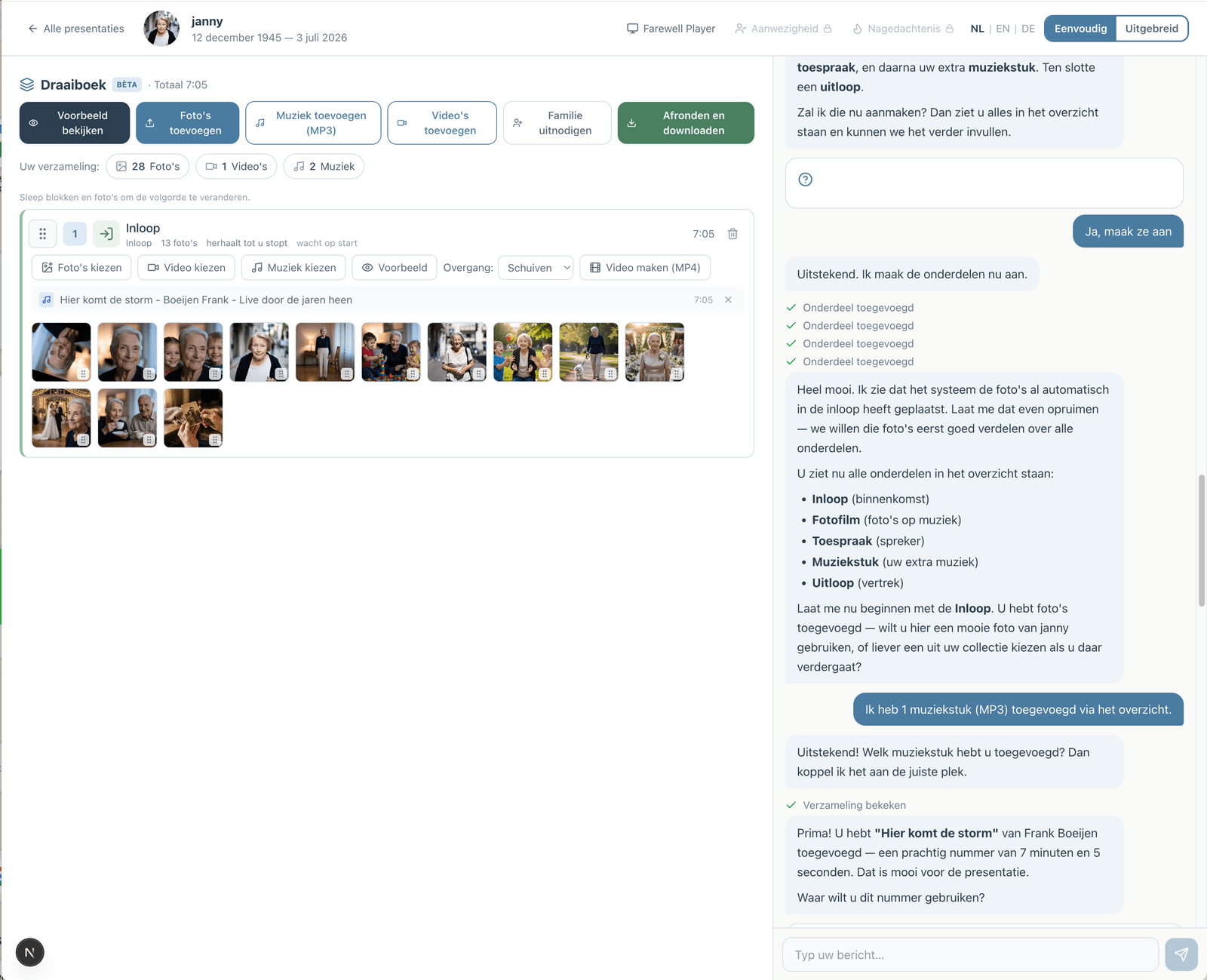
Prefer to go step by step? The assistant can help
If you would rather not figure everything out yourself, you can work with an assistant in the simple view. You describe how the service will go; the assistant prepares the parts, the music and the photos. You make the choices, and you can switch to the advanced view at any time.
How the assistant worksHow does it work?
Create a free account
Upload photos and videos
Choose music and customize
Download or share the presentation