
A cremation service slideshow that fits the time you have
Tell the system how long the service lasts. It keeps count as you build, shows what is left, and writes a one-page guide for the person at the laptop.
Start for freePay only when you download, with iDEAL | Wero or card
Upload together
Family add their own photos
Create together
You select the most meaningful photos
Watch together
View the presentation with family
Know that it fits before the day arrives
A cremation service slideshow usually has to share a fixed amount of time with eulogies, readings and music, and thirty or forty-five minutes fills up faster than most families expect. The Last Farewell lets you enter that length once. From then on every song, speaker and video you add is counted, and the screen shows how much is planned and how much is left. If you go over, it says so in red, down to the second. And because you will be sitting with your family on the day, not behind a laptop, the system also produces an operator guide: one page that tells whoever runs the funeral slideshow when to press start and when to leave it alone. This page walks through how that works inside the application.
Easy to use
Create together with family
Professional result
Ready within an hour
The time overview: from 'Too long' to 'Time left'
Open Running order in the menu. At the top are three fields: Date, Start and 'How long may the service take?'. The last one is a list from 10 to 120 minutes in steps of five. Pick a value and four boxes appear side by side: Length of the service, Speaking time, Presentation and Time left. The fourth box is green while everything fits. Once the total runs past the service length it turns red and its label changes to 'Too long'. The same figure sits above your slideshow as a single line, for example '32:10 of 30 minutes · 2:10 too long'. Click that line and you are back in the running order.
Enter a time under Start, say 2:00 pm, and every part of the service gets a clock time. You can then read the service line by line: entrance music at 14:00, words of welcome at 14:05, the first photo slideshow at 14:08 with the song title underneath, a eulogy at 14:12. The duration of each part is on the right, and the heading of the block called 'The service' shows when the whole thing starts and ends, such as 14:00 – 14:32. Leave Start empty and you get a dash, with a short hint that the time can still be filled in. Move a part or shorten a song and every time after it shifts along automatically.
When it does not fit, you fix it on the same screen where you build the slideshow. A worked example: the service may take 30 minutes, the boxes show 12:00 of speaking time and 20:10 of presentation, so you are 2:10 too long. In your collection you use Trim to cut a 4:40 song down to 3:10 (a trimmed version is added, the original stays) and select that version for the part with Choose music. You ask the assistant to set one eulogy to four minutes instead of five, or change it yourself in the advanced view. The box now reads 'Time left 0:20'. The shorter song leaves the forty photos only about five seconds each, and that number is shown in amber next to the part. You take ten photos out of the part (they stay in your collection) and add them to the entrance with Choose photos. Thirty photos over 3:10 is a little more than six seconds each again.
The four boxes of the time overview
Length of the service
The number of minutes you chose under 'How long may the service take?'. Everything else is measured against it. Until you choose, this box shows a dash and the fourth box stays empty. You can change it at any point, even when the memorial slideshow is finished.
Speaking time
The planned time of the parts where one photo stays on screen and the operator clicks on by hand: each speaker, and also a moment of your own such as a poem or a minute of silence. You estimate this time yourself. If a eulogy runs long, the slideshow simply waits; nothing plays on behind the speaker.
Presentation
Everything else: the photo slideshows, the pieces of music and the videos, plus the planned time for the entrance and the exit. A photo slideshow or piece of music lasts as long as its song, and a video compilation as long as its videos, so there is nothing for you to add up.
Time left, or Too long
The length of the service minus everything that is planned, in minutes and seconds. Green and labelled 'Time left' when it fits, red and labelled 'Too long' when it does not. It updates the moment you trim a song, give a speaker more or less time, or remove a part.
What you can change in the system to make it fit
- Trim a song to the section you want to use; the original stays in your collection
- Change the planned length of a speaker, a moment of your own, the entrance or the exit, yourself or through the assistant
- Take photos out of a crowded part and add them to the entrance or exit, where they keep repeating quietly
- Trim a video to the part that matters, so the photos around it get more time
- Remove a part altogether with the cross; its photos and music stay in the collection
Waiting moments: nothing plays on while someone is speaking
In the overview a photo slideshow or piece of music carries the label 'waits for start'. It means exactly that: the part begins only when the operator presses start, so a speaker can finish and walk back to their seat before the music comes in. A speaker part works the other way round: its photo stays up until someone clicks on. The entrance and the exit repeat until you stop them. Need a stop in the middle of a part, because someone reads a few lines halfway through? Every photo has a small button in its bottom-left corner that says Play. Click it and it turns red and says Stop: the slideshow will wait for start at that photo. Click again and it runs through as before. You can also ask the assistant in plain words.
View preview is where you check it. The preview plays with the music and stops in exactly the places it will stop during the service. At a waiting moment the picture dims and you see the name of the part, the line 'This part waits until start is pressed.' and a Start button. At a speaker part a hint tells you the photo stays on screen during the speech and that the space bar moves on. The parts are listed as buttons along the bottom, so you can jump straight to one handover without sitting through the whole service. Click through the preview once like this and you know how the funeral photo slideshow will behave at the cremation.
What the operator receives, and what each download keeps of the waiting moments
The download screen offers the Operator guide (PDF): one A4 page with the name, date and start time at the top and a table of four columns below: Part, What happens, Your action and Duration. Under Your action each row says something like 'Press start, then nothing', 'Click per photo (3×)', 'Runs by itself, nothing to do' or 'stops at photo 12: press start'. Rows that need someone to act are tinted so they stand out. From the running order you can also download the Order of service (PDF) for the speakers and the Running order of the day (PDF), which adds what happens before and after. Then the four download formats. PowerPoint (.pptx): the music is inside the file, slides advance by themselves, the waiting moments are slides that wait for a click, and the notes of every slide repeat the instruction. Farewell Player: follows the same order and waiting moments, runs without internet, and is operated with the space bar and arrow keys; the entrance keeps repeating until you continue. Numbered photos (001.jpg, 002.jpg, ...): no timing is included, the operator clicks through every photo and the music comes as a separate file. Video (MP4): each part is its own video file with pictures and music in one, so the waiting moment becomes starting the next file, and inside a file everything plays straight through.
The song sets the length of a part
You add your own MP3 files and choose which song belongs to which part. The photos spread themselves over the length of that song, and the part shows how long each one gets, for example '±7 sec per photo'. A photo is on screen for eight seconds at most; with few photos and a long song, the series comes round again.
This matters for the clock. A song of 3:45 costs 3:45 of the service whether it carries twenty photos or thirty. To win back minutes you trim the song or choose a shorter one; adding or removing photos only changes the pace. Below six seconds per photo the number turns amber as a sign that it is going fast.
Important: Spotify and YouTube are available in the advanced view for finding and listening to music while you work. Only your own MP3 is included in the download. If a part still uses a Spotify or YouTube track, you are warned before you download.
In short
- Collect together: helpers add photos, videos and music using an email address and a code
- Free to build and to fit to time; you pay only when you download
- iPhone HEIC, JPEG and PNG work straight away, scans included
- Your own MP3 as music; photos spread themselves across the song
- A time overview with four boxes and a clock time for every part
- Four download formats: PowerPoint, numbered photos, Farewell Player and video (MP4)
- Runs in the browser on phone, tablet and laptop, nothing to install
Why this makes the day itself calmer
A slideshow for a cremation service rarely goes wrong because of the photos. It goes wrong on the clock and at the handovers: a song still playing while the next speaker is already standing, or a person at the controls who is unsure whether to click. The time overview and the waiting moments exist for exactly that. You see the problem in numbers while you are still building, and you solve it in a few clicks.
You do not have to do it alone. Invite relatives and friends by email as helpers; they get in with their email address and a code and add photos, videos and music to the shared collection. HEIC photos from an iPhone, JPEG and PNG all work as they are. Everything runs in the browser on a phone, tablet or laptop, with nothing to install. Send the Order of service (PDF) to the speakers, so everyone knows how many minutes of the memorial slideshow programme are theirs.
Building, previewing and adjusting are free, including the running order with its times. You can play the preview with music as often as you like; it carries a light watermark. You pay once, when you download, and you can download again later if something changes. No subscription and no payment details needed up front; you can pay with iDEAL | Wero, Bancontact or card.
Free to make, preview and fit to time. One payment of … when you download.
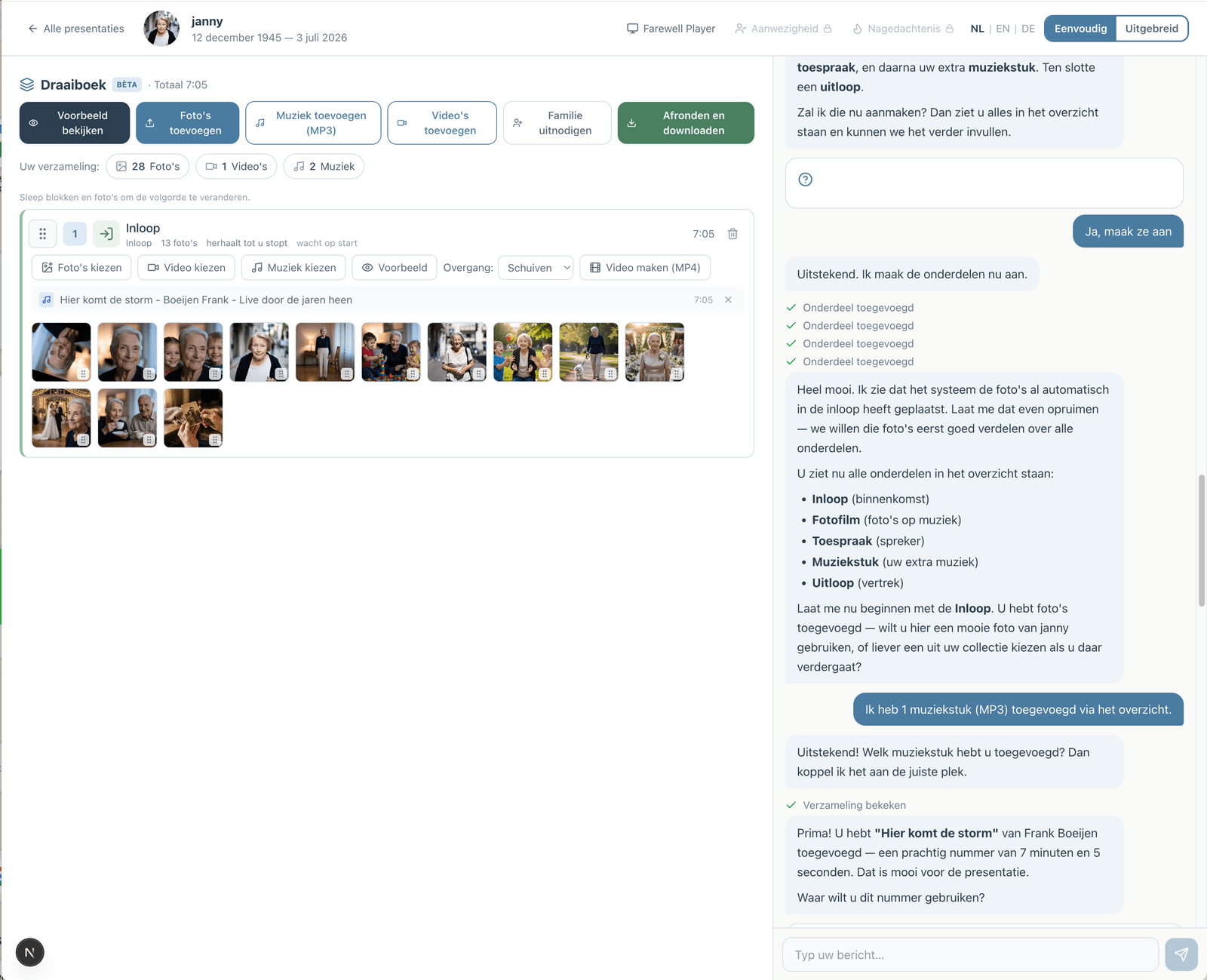
Prefer to go step by step? The assistant can help
If you would rather not figure everything out yourself, you can work with an assistant in the simple view. You describe how the service will go; the assistant prepares the parts, the music and the photos. You make the choices, and you can switch to the advanced view at any time.
How the assistant worksHow does it work?
Create a free account
Upload photos and videos
Choose music and customize
Download or share the presentation