
Make a funeral slideshow together with family
Relatives and friends send in photos, videos and music. One person stays in charge of what is shown at the service.
Start for freePay only when you download, with iDEAL | Wero or card
Upload together
Family add their own photos
Create together
You select the most meaningful photos
Watch together
View the presentation with family
Many contributors, one slideshow
To make a funeral slideshow together, you need one simple rule: everyone contributes, one person decides. The photos you want are spread across the phones, laptops and albums of siblings, grandchildren, cousins and old friends. This page walks through how to invite them, what a helper can and cannot do, how to split the work, and how to avoid ending up with three hundred pictures for a four-minute song.
Easy to use
Create together with family
Professional result
Ready within an hour
Inviting someone, step by step
Open your slideshow and choose 'Invite others'. Enter the email address of the person you want to help; adding a name is useful but optional. Once the invitation is sent, a short message is also ready for you to edit and pass on yourself, for example by WhatsApp. That is handy for relatives who rarely check their inbox, or when the invitation has landed in a spam folder.
The helper opens the invitation and signs in with the email address you invited. A code arrives by email, they type it in, and that is all. There is no password to make up or remember. They land straight in your slideshow and can start adding photos, videos and music.
The 'Who is helping' overview shows who has joined and who has not responded yet. Each photo shows who added it. If you want to withdraw someone's access, remove them from the list; whatever they already added stays in the collection.
A division of tasks that works for most families
One person in charge
That is you, or whoever created the slideshow. You choose which photos go into which part of the service, in what order, and which music goes with them. It keeps the result one story rather than five separate collections.
The contributors
Siblings, grandchildren, friends, former colleagues. They look through their own phones and albums and add what they have. Give each a period or circle to cover: childhood, work, holidays, the club or church.
Someone for the music
Ask one person to find the songs and add them as MP3 files. A helper can put music in the collection; which song goes with which part of the service is up to you.
A second pair of eyes
If you would rather not put it together alone, give one helper the access level 'Also edit the presentation'. They can then arrange and choose alongside you. Keep this to one or two people, or you will be working across each other.
How to keep a collaborative memorial slideshow from getting out of hand
- Agree a deadline for sending things in, for example 8 pm two days before the service. That leaves you time to choose.
- Name a number. Ask each person for ten to fifteen photos that mean something to them, not their whole camera roll.
- Work back from the music. A photo is on screen for six to eight seconds, so thirty to forty photos are plenty for a four-minute song.
- Expect duplicates: everyone has that one wedding picture. In the simple view the assistant can find duplicate photos for you; you decide which one stays.
- Say up front that not everything will make it in. People who know that are not hurt afterwards when their photo is missing.
What a helper can and cannot do
By default a helper can only add: photos, videos and music. They see simple upload pages and can remove their own uploads if they make a mistake. They cannot work in the slideshow itself, move parts of the service around, or invite other people. So a wrong photo never ends up on screen by accident; everything arrives in the collection first, and you pick from there.
For any individual helper you can widen the access to 'Also edit the presentation'. That helper can then work on the parts of the service and play the preview. Inviting and removing helpers stays with you, and you can switch the access back at any time.
Watch the preview together, then download
The preview plays the slideshow as it will run at the funeral or celebration of life, with the music and with the points where the operator has to press start. Watch it with close family on one screen, at the table with a laptop or on the television, and note what needs changing. This is free and you can do it as often as you like; a light watermark is shown over the picture. When everyone agrees, download in the form the venue asks for: PowerPoint, numbered photos, the Farewell Player or a memorial video (MP4). A one-page operating guide for whoever runs it on the day comes with it, and the order of service is available as a PDF.
Family abroad, and relatives who are not good with computers
When you collect photos from family, a sister in Australia or a cousin in Canada takes part in exactly the same way as the neighbours. Everything runs in the browser on a phone, tablet or laptop, with nothing to install. Most photos live on a phone, and they can be added straight from that phone.
Nobody has to convert anything. HEIC photos from an iPhone work as they are, as do JPEG and PNG, and scans and PDFs too. Phone videos (MP4, MOV) can be added as well. You will not have to explain to anyone how to convert or shrink a file.
For someone who really cannot manage it: have a grandchild sit with grandma and her phone for ten minutes, or photograph the prints from the album with your own phone and add them yourself. That is usually quicker than explaining it over the telephone.
Choosing the music as a family
Music is what families discuss most. While you are making the memorial slideshow you can look up and listen to songs through Spotify or YouTube in the extended view, so you can hear together what fits.
Once the choice is made, you or a helper add the song as your own MP3 file. The photos spread themselves across the length of the song. If a song is too long for the number of photos, you can shorten it.
Important: the download contains only your own MP3. Music from Spotify or YouTube is there for listening while you work, nothing more.
Why it turns out better together
No one has all the photos. The childhood pictures are with a sister, the working years with a former colleague, the last few summers on a grandchild's phone. When you make a funeral slideshow together, the picture of a life is more complete than anything one person could gather in a couple of evenings.
Choosing to make a funeral slideshow together also saves work in a week when there is already a great deal to arrange. No piles of emails with attachments, no group chat where photos arrive small and blurry, no USB sticks. Everything comes into one collection and you can see at a glance what there is.
If you are working with a funeral director, they can set the slideshow up for you and invite you as the family. You then invite your own helpers. You pay once, at download; how many people help makes no difference.
Free to make, collect together and preview. One-time … when you download.
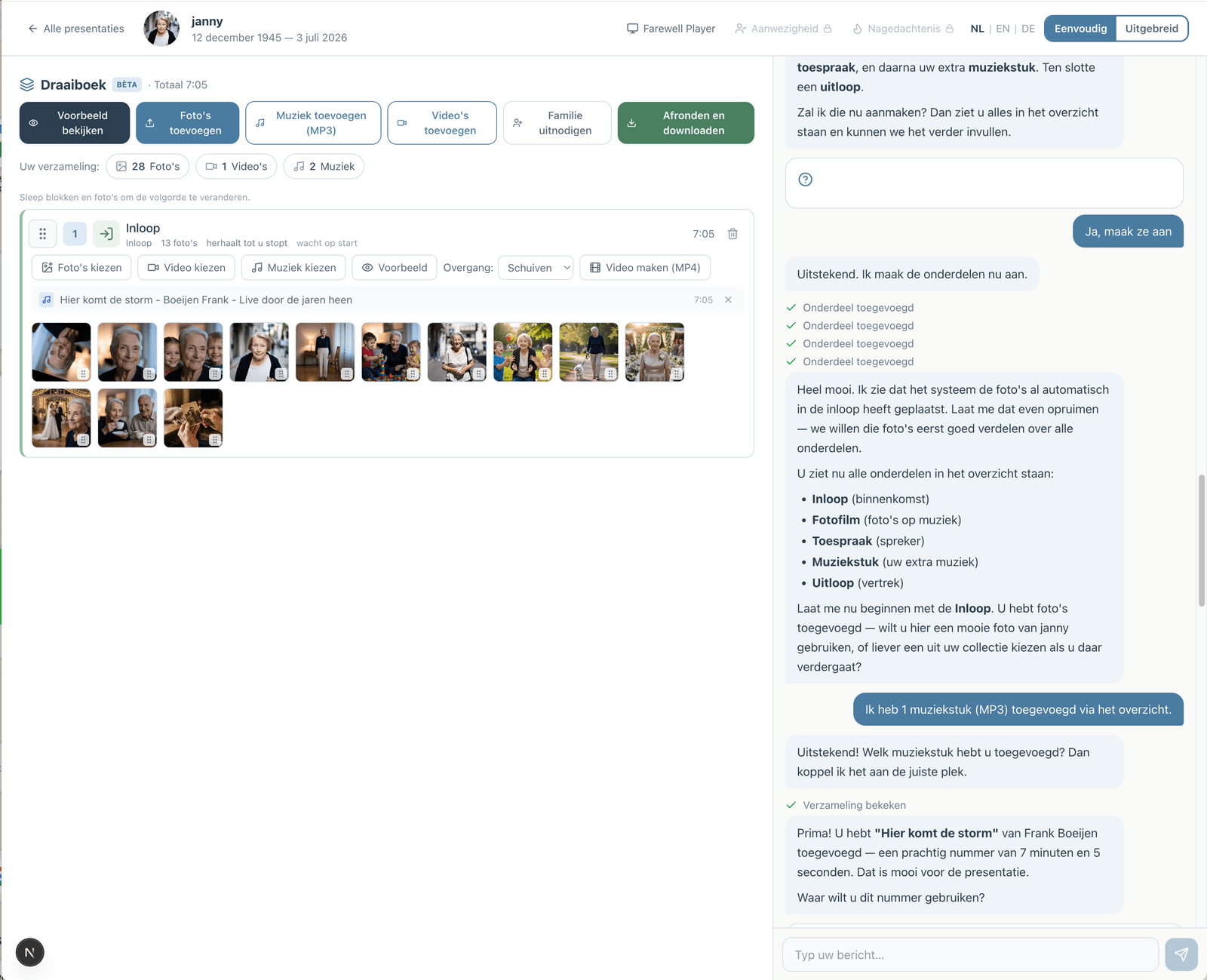
Prefer to go step by step? The assistant can help
If you would rather not figure everything out yourself, you can work with an assistant in the simple view. You describe how the service will go; the assistant prepares the parts, the music and the photos. You make the choices, and you can switch to the advanced view at any time.
How the assistant worksHow does it work?
Create a free account
Upload photos and videos
Choose music and customize
Download or share the presentation